To create a company invoice with your own logo, prepare the image, add it to your invoice, enter the company and billing details, and review the document before downloading the PDF. The logo helps customers recognize the sender, while complete transaction information makes the invoice easier to check and pay.
Branded invoices are useful for trading companies, service providers, distributors, agencies, and small businesses. You do not need an elaborate design. Readable information, consistent company details, and a clear amount due provide a strong foundation.
This guide covers logo preparation, creating an invoice with FariDocs, an example document, and ways to fix blurry or undersized logos.
Why Add Your Company Logo to an Invoice?
A logo provides visual continuity with your quotations, website, and business communications. Customers receiving documents from several suppliers can use recognizable branding to identify the intended sender.
The logo should appear alongside an accurate company name, address, contact details, and payment instructions. A logo alone does not verify the sender or establish that a bill is correct. Customers still need to match the invoice to their agreement.
Prioritize three things: an identifiable issuer, service or product details that can be checked, and a clearly visible payment amount.
Prepare the Logo and Billing Information
InformationWhat to checkCompany logoUse an approved version that remains clear at a small sizeIssuerCompany name, address, email, and phone numberCustomerCustomer or legal business name and billing addressTransaction referencePO, quotation, contract, or order number where availableNumber and datesUnique invoice number, issue date, and due dateLine itemsGoods or services, specifications or period, quantities, and pricesPaymentBank details, account holder, and payments already receivedIf your brand name differs from your company name, display the issuing company clearly alongside the brand identity. Use details consistent with the customer's supplier records so their finance team can identify the entity sending the invoice.
Which Logo File Should You Use?
The logo upload field on FariDocs accepts JPG, JPEG, PNG, and WebP, with limits of 2 MB and 25 MP. Prepare an image that meets both limits.
A transparent PNG can avoid an unwanted background box on a suitable page. A JPG can also work when its background matches the document. Choose based on the quality and appearance of the available image, not the extension alone.
Before adding the logo:
Use an original export from your designer rather than repeated screenshots.
Preserve the width-to-height ratio to prevent stretching.
Trim excessive empty space while retaining the brand's required clear space.
Select a version with sufficient contrast against the page.
Avoid tiny taglines that become unreadable at normal viewing size.
A very large image is not always necessary for a small printed logo. As an illustration, a 600-pixel-wide image printed at 5 cm wide provides approximately 305 pixels per inch. This is a working example, not an upload requirement; source quality and final display size still matter.
How to Create an Invoice with Your Company Logo in FariDocs
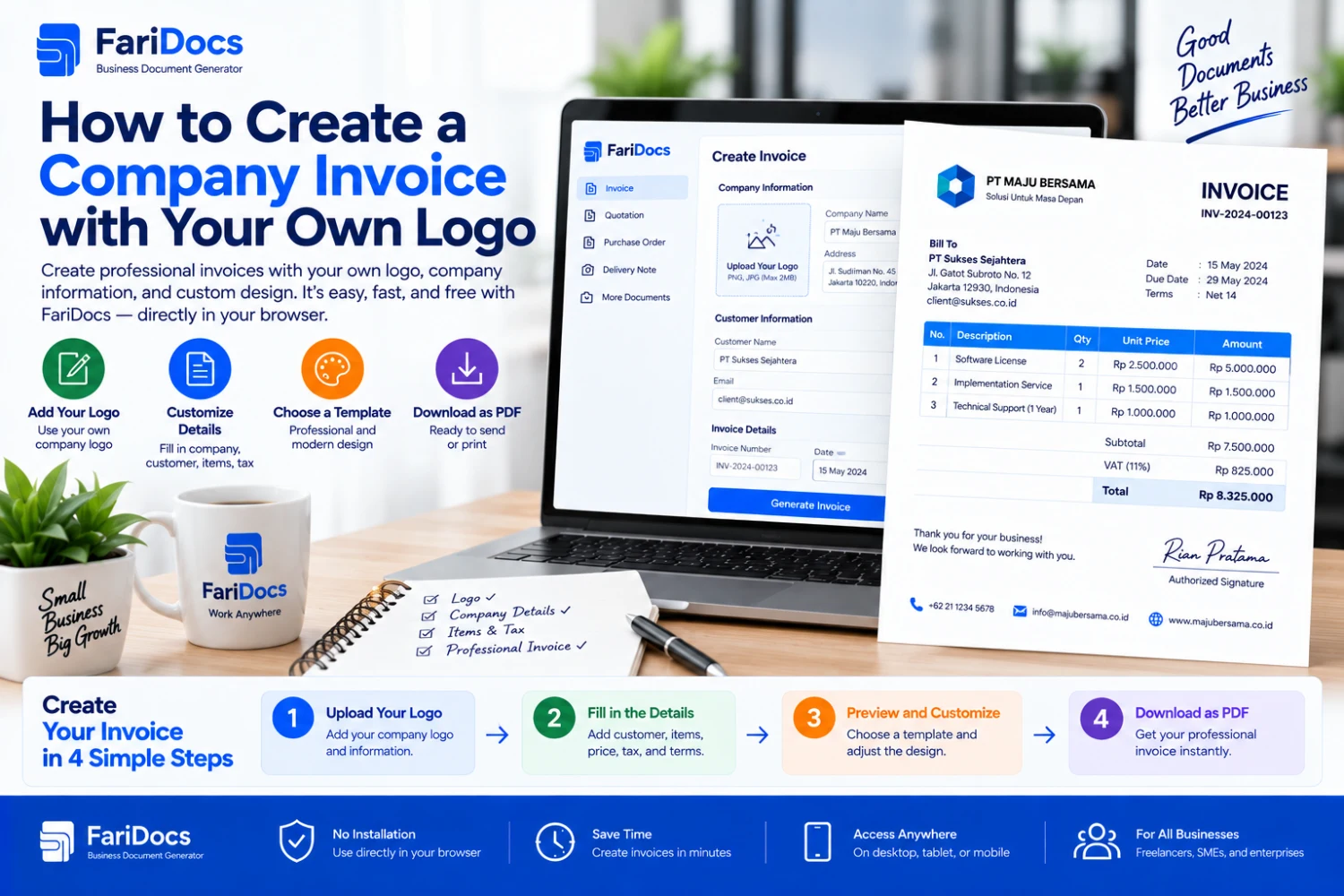
1. Open the Generator and Add Your Logo
Open the FariDocs invoice generator and use the logo upload in the document identity section. Appearance settings include fonts, paper size, accent color, and templates. After completing the document, use the preview and PDF download options.
2. Choose a Readable Appearance
Use your brand color as an accent rather than applying strong colors everywhere. Dark main text and a simple background help keep customer names, prices, and bank details readable.
Consider whether customers will print the invoice in black and white. Font size, spacing, and information placement should still distinguish the document's sections when color is unavailable.
3. Complete Company and Customer Details
Enter the correct issuer name, address, and contact information. Check the customer's name against the order or information provided by its finance team.
For goods going to another location, distinguish the delivery address from the billing address. For services, identify the project or service period so the customer can recognize the transaction.
4. Enter an Invoice Number and References
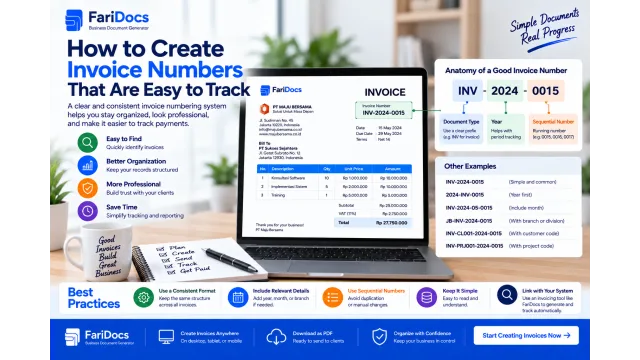
Use a unique number such as INV-2026-0118. Set the issue date and payment deadline according to the agreement, and add the relevant PO or contract number.
Do not reuse the same number for unrelated transactions. If revising an invoice already sent, explain the revision so the customer does not process both versions as separate bills.
5. Add Goods or Services
Write specific descriptions, quantities, units, and prices. “Website maintenance for September 2026” is clearer than “Monthly services”.
If the price applies per package or carton, identify that unit. Make sure quantities follow the same unit used for pricing.
6. Check the Amount and Payment Instructions
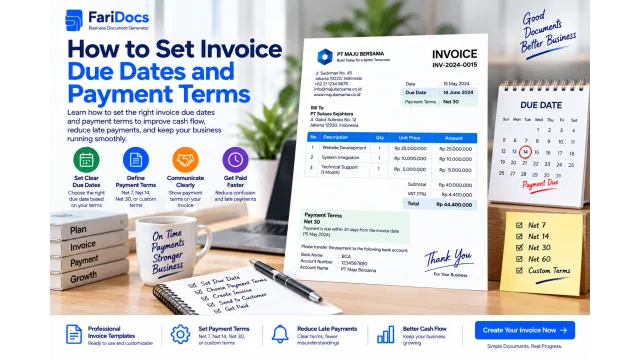
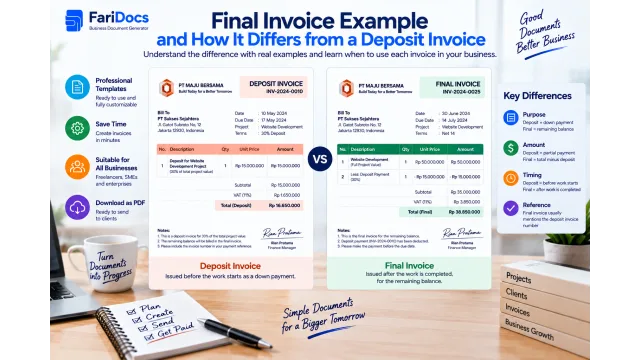
Match the bill to the approved order. Keep discounts separate from payments received. If the customer has paid a deposit, show it alongside the remaining balance.
Check the bank account number and account holder carefully. Inconsistent payment details can cause the customer to pause payment and request clarification.
7. Review the Logo in the Downloaded PDF
Open the downloaded PDF at normal viewing size. Make sure the logo is clear, uncropped, and does not interfere with the title or company information.
Check additional pages when there are many line items. Ensure the total, bank details, and payment notes are included. Keep a copy with an identifiable filename, such as INV-2026-0118-PT-Pelanggan.pdf, and send it through the customer's agreed billing channel.
Example Company Invoice with a Logo
The following fictional example illustrates the invoice content. Add your company logo in the document identity area. “[Company logo]” is a placeholder, not an embedded image.
[Company logo]
PT Solusi Contoh Indonesia
[Company address]
[Email and phone number]
INVOICE
FieldExampleInvoice numberINV-2026-0118Issue date12 September 2026Due date26 September 2026Bill toPT Pelanggan ContohCustomer address[Billing address]ReferencePO-2026-0084DescriptionQuantityUnit priceAmountWebsite maintenance for September 20261 packageIDR 2,000,000IDR 2,000,000Promotional banner design under the order4 designsIDR 250,000IDR 1,000,000SubtotalIDR 3,000,000Agreed discount−IDR 150,000Invoice totalIDR 2,850,000Deposit received−IDR 1,000,000Balance dueIDR 1,850,000Payment: [Bank name] — [Account number] — Account holder: [Name].
Notes: Include INV-2026-0118 as the payment reference. The IDR 1,000,000 deposit has been received and verified. Contact [billing contact] with questions about the invoice.
Amounts are illustrative and exclude taxes and additional charges. Replace all identities and bracketed fields before using the example.
Troubleshooting Invoice Logo Problems
ProblemPossible causeWhat to doBlurry logoSmall source image or repeated compressionExport again from the original file at a suitable sizeLogo looks too smallExcessive empty space around the artworkTrim unnecessary outer space while preserving brand clear spaceStretched appearanceChanged width-to-height ratioExport with the original proportionsLogo seems invisibleLogo and background colors are too similarUse a version with appropriate contrastUnwanted white boxWhite background is part of the imageUse a transparent version or matching page backgroundUpload is rejectedUnsupported format, file size, or resolutionMatch the upload requirements displayed on the formFix the source file first when the problem comes from the image itself. Enlarging a low-resolution logo does not restore missing detail.
Frequently Asked Questions
Does a logo replace the company name on an invoice?
No. Include the company name clearly, particularly when the logo consists only of a symbol or brand name. Customers should be able to identify the issuing business.
What if my logo is an SVG or PDF?
Export a copy to a supported image format before uploading. Simply renaming the file extension does not convert it. Keep the source file for future exports.
Is a transparent logo always better?
Transparency helps on a suitable background, but contrast still matters. A transparent white logo may be hard to see on a white page. Select a version intended for the document's background.
Does adding a logo automatically make an invoice trustworthy?
A logo supports consistent identity, but trust also depends on matching company information, order details, contacts, payment instructions, and the delivery channel. Check those details before sharing the invoice.
What if the brand and legal company names are different?
For clear administration, explain the relationship between the brand and issuing company and use the business identities that apply to your transaction. The logo should not cause customers to misunderstand who issued the bill.
Should I create a separate English invoice?
Use the language agreed with the customer. If providing a translation of the same invoice, keep its number, currency, amounts, and references consistent. Explain that it is another language version rather than an additional bill.
Create a company invoice with your own logo using FariDocs. Keep your identity consistent, describe the charges clearly, and review the PDF before sending it to your customer.