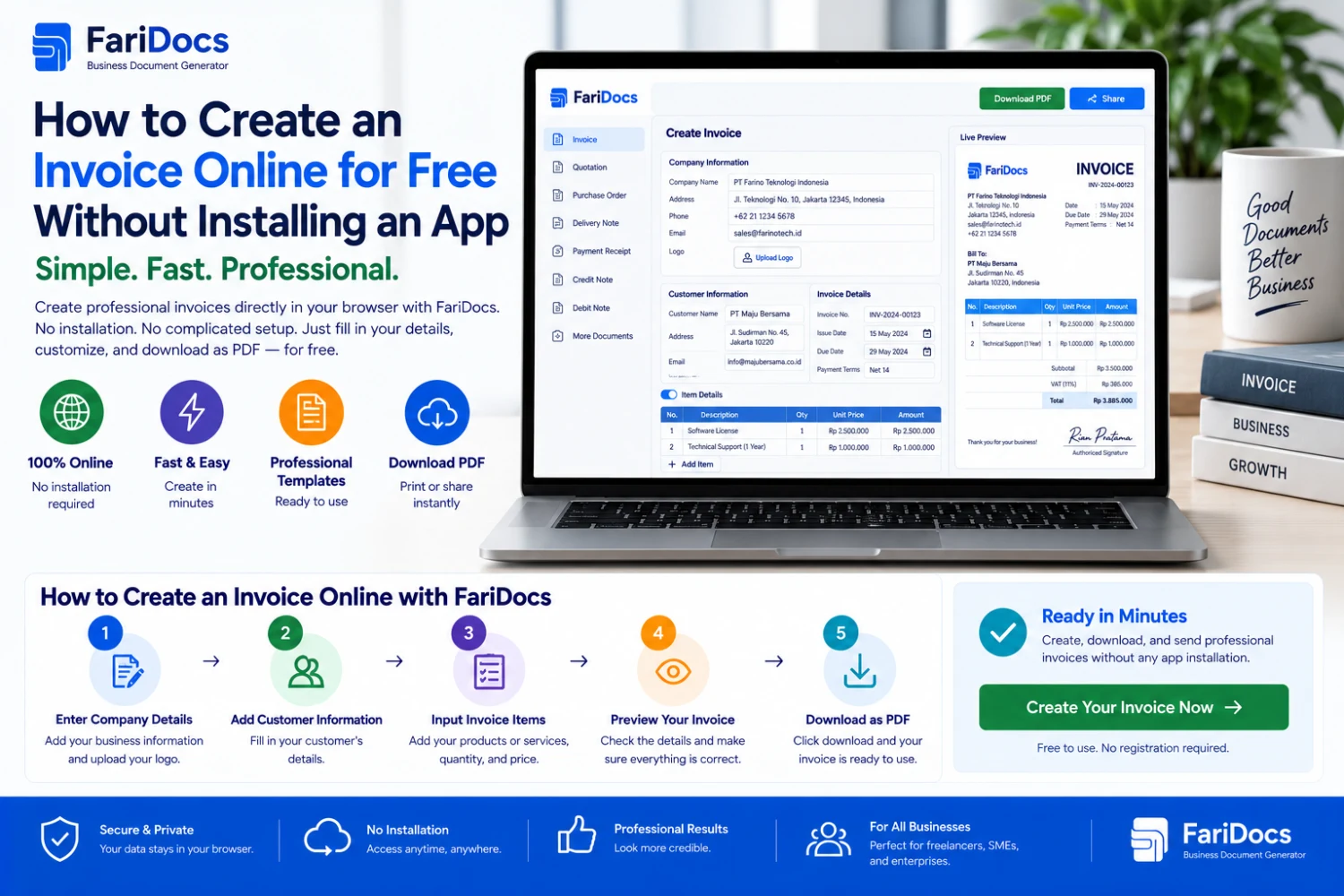
To create an invoice online for free, open an invoice generator in your browser, enter your business and customer details, add your items, review the total, and download the invoice as a PDF. You can follow this process on a computer or phone without installing additional software.
The FariDocs invoice generator provides an online form, live preview, automatic calculations, and PDF downloads. You can adjust the document number, logo, currency, and billing components to match your transaction.
This guide covers preparation, step-by-step entry, an example calculation, and the checks to complete before sending an invoice.
Quick Guide to Creating an Online Invoice
Open the FariDocs invoice page in your browser.
Enter your business and customer details.
Check the invoice number, issue date, and due date.
Add products or services, quantities, and unit prices.
Include relevant discounts, taxes, shipping charges, or payments.
Review the preview and outstanding balance.
Download the PDF, save a copy, and send it to the customer.
Gather the transaction details first so you do not have to stop midway to find a billing address or order reference.
What You Need Before Creating an Invoice
A useful invoice helps the customer understand the charge and make the payment. Prepare these details before you begin:
InformationWhat to prepareBusiness identitySeller’s name, address, and contact detailsCustomer identityCustomer or company name and billing addressTransaction referenceOrder, purchase order, or contract number, if applicableChargesProducts or services, quantities, units, and pricesPayment scheduleIssue date, agreed due date, and payment termsAdjustmentsDiscounts, shipping, and applicable taxesPrevious paymentsAny verified deposit or partial paymentPayment destinationBank name, account number, and beneficiaryYou may also add a logo to identify your business. For corporate customers, confirm that the legal business name and billing address match the information they have supplied.
How to Make a Free Invoice with FariDocs
1. Open the Invoice Generator in Your Browser
Visit the invoice creation page. Select the appropriate language, currency, and paper size. Choose IDR when billing in Indonesian rupiah.
Use one currency consistently throughout an invoice. If the original price was quoted in a different currency, agree on the amount to be billed before completing the document.
2. Enter Your Business and Customer Details
Provide your business name, address, and contact information. In the customer section, identify the party responsible for the bill.
For company orders, a contact person’s name alone may not be enough for payment processing. Include the company name and billing address. Add a shipping address if goods are being delivered to a different location.
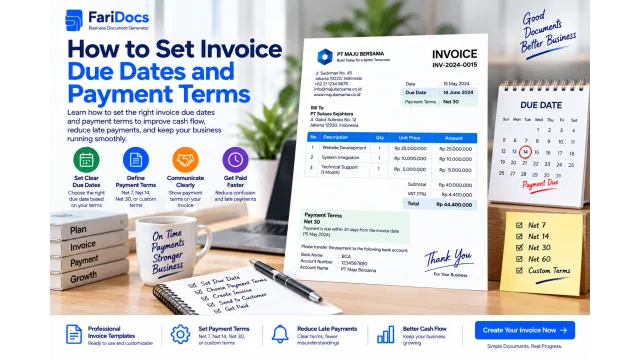
3. Check the Invoice Number and Dates
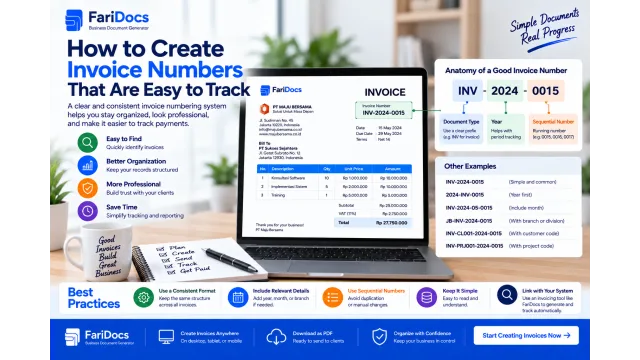
Choose a unique number that is easy to trace. One example is:
INV-2026-09-002
Here, INV identifies the document, 2026 is the year, 09 is the month, and 002 is the sequence number. This is an illustrative internal numbering pattern; follow a consistent process suited to your business.
Set the issue date and payment deadline according to your agreement. For example, an invoice dated September 6, 2026, could be due on September 20, 2026, if both parties agreed to that date.
Add the relevant purchase order or contract number when your customer needs it to match and approve the bill.
4. Add the Products or Services
Create a separate line item for each product or service. Use descriptions that clearly explain the purchase.
Examples include:
Website maintenance for September 2026.
A 12-page product catalog design, according to the approved quotation.
Network installation and configuration for one office location.
Enter the quantity and unit price carefully. For a packaged service, specify the number of packages. For hourly work, state the billable hours and agreed rate.
5. Include the Relevant Billing Components
FariDocs provides options for discounts, taxes, shipping charges, and payments on its invoice generator. Use the components that apply to your transaction. Totals and balances are calculated from the information entered. Open the FariDocs invoice generator.
Keep discounts separate from payments already received. A discount reduces the transaction value, while a payment reduces the outstanding balance.
Where taxes apply, use the calculation basis and amount appropriate to your transaction. Do not copy a tax percentage from another invoice without checking whether it applies.
6. Add Payment Instructions and Notes
Include the bank name, account number, and beneficiary clearly. Ask the customer to quote the invoice number in the payment reference to make matching easier.
Use notes for information that assists the customer, such as the service period or supporting-document references. Avoid introducing new commercial terms that were not agreed upon when issuing the bill.
7. Review the Preview and Download the PDF
Check the customer details, items, amounts, and due date. Make sure descriptions are unambiguous and the payment destination is correct.
After downloading, open the PDF to inspect the final output. Review every page if the invoice contains many items or long descriptions. Use a searchable filename, such as INV-2026-09-002-Sample-Customer.pdf.
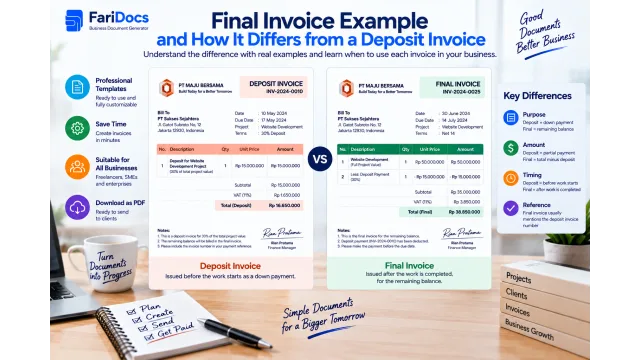
Online Invoice Example with a Deposit
The following service invoice is illustrative and does not represent an actual customer transaction. Values are in Indonesian rupiah, using English number formatting.
Invoice number: INV-2026-09-002
Invoice date: September 6, 2026
Due date: September 20, 2026
Customer: Sample Customer
Taxes and shipping charges are excluded from this example. Include them when they are relevant to the actual transaction.
The customer still owes IDR 1,500,000. Recording the deposit as a payment helps prevent charging the customer again for money already received.
How to Create an Invoice on Your Phone
Follow the same process using your phone’s browser. To make it easier:
Prepare customer and order details before opening the form.
Double-check amounts after using the numeric keyboard.
Review the preview to confirm that the information is readable.
Look for the PDF in your browser’s download list or your device’s Downloads folder.
Open the file before sharing it.
For invoices with many line items, a laptop’s larger screen may make review easier. Choose the device that helps you work accurately.
How to Send an Invoice by Email or WhatsApp
A downloaded PDF is ready to share, but it still needs to reach the correct billing contact. For email, use a subject containing the invoice number and your business name. State the purpose of the message, the outstanding amount, and the due date.
On WhatsApp, send the PDF as a document so the recipient receives the original file. Confirm that the contact handles payments. Corporate customers may require submission to a finance email address or a specific portal.
Do not mark an invoice as paid solely because the customer sends a transfer screenshot. Verify receipt of the funds and match the amount. Once payment is confirmed, prepare a payment receipt if needed.
Before You Send: Invoice Checklist
CheckWhat to confirmCustomerCorrect name and billing addressDocument numberNot used for a different transactionItemsDescriptions, quantities, and prices match the orderPaymentsDeposits and partial payments have been includedDue dateMatches the agreementBank detailsCorrect account number and beneficiaryReferencesRequired PO, contract, or supporting documents are includedPDFOpens correctly and every page is readableIf the PDF Does Not Download or Needs a Correction
If you cannot find the download, check your browser’s download list and internet connection. Confirm that required fields are complete and read any validation messages. Preserve important information before refreshing the page.
If the PDF contains an error, correct the form and download a new copy. When an earlier version has already been sent, notify the customer of the revision. Make clear which version applies so the two documents are not processed as separate bills.
Free Generator or Workspace for Your Team?
The free generator suits document creation and PDF downloads. If your process involves multiple team members, storage, and transaction controls, consider Workspace according to the features available in each plan. Compare your requirements with FariDocs pricing.
Whichever option you choose, maintain organized copies of invoices and payment records. Downloaded files need a clear filing process so they can be found later.
Frequently Asked Questions
Can I create an invoice without installing an app?
Yes. A web-based generator works through your browser. Additional software is not required to complete the form and download a PDF.
Is creating an invoice with FariDocs free?
Yes. The public invoice generator offers free invoice creation and PDF downloads. Paid Workspace features have a separate scope, described on the pricing page.
Can I add my own logo?
Yes. FariDocs provides a logo upload option. Use a clear image and follow the file type and size limits displayed on the form.
Can I show a partial payment?
Yes. Enter verified payments in the payment section. Check the invoice total and remaining balance before downloading the document.
Can I complete this process without internet access?
This guide uses an online service, so use an internet connection to access the site and generate the PDF. Once downloaded, the file can be opened using a PDF reader available on your device.
Does downloading an invoice mean it has been paid?
No. An invoice is a bill. Its paid status depends on money actually received and verified.
Start with your transaction details. Create a free online invoice with FariDocs, review the result, and send the PDF to your customer.