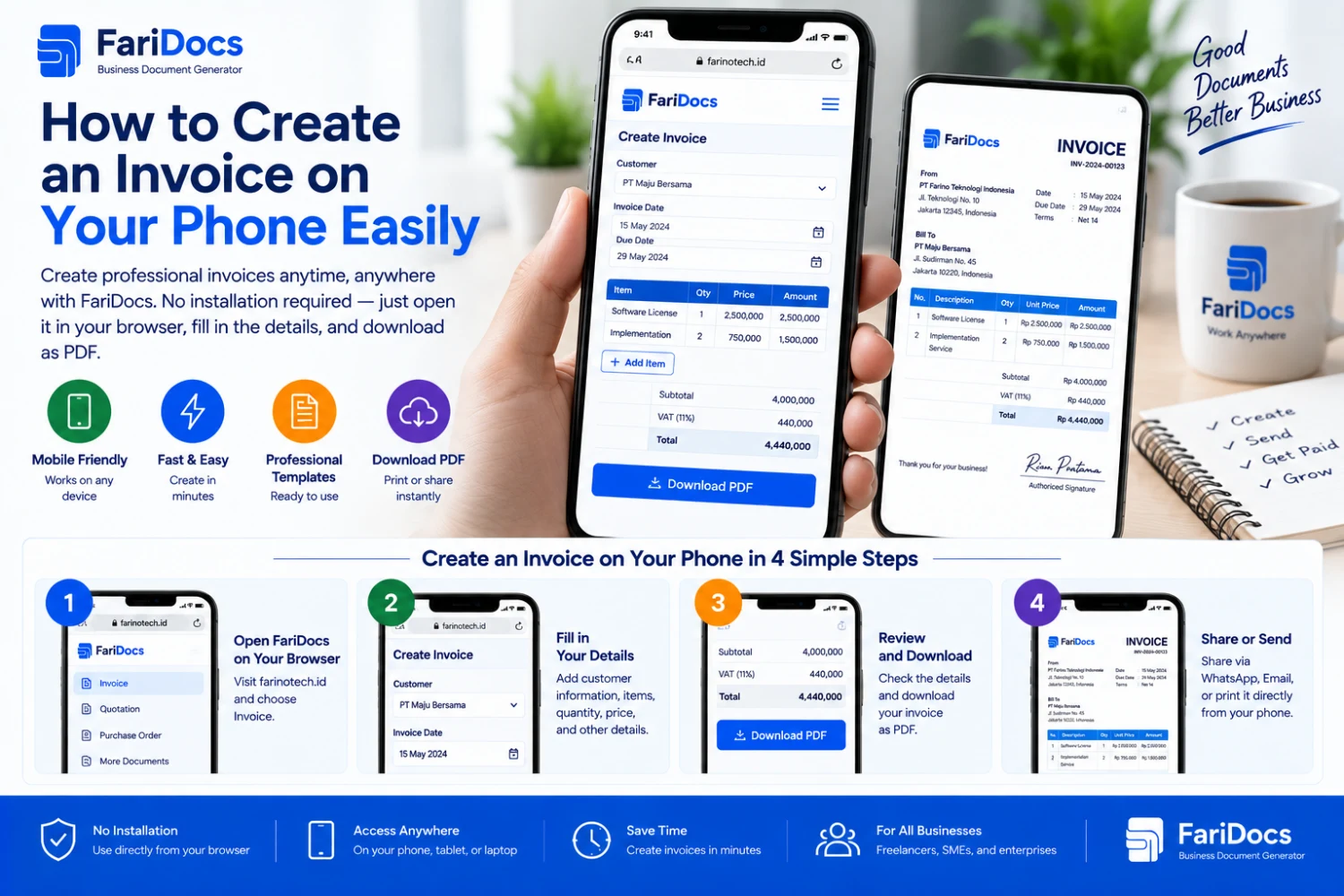
To create an invoice on your phone, open an invoice generator in your browser, enter your business and customer information, add the charges, and download the result as a PDF. Once saved, you can send it by WhatsApp or email without opening a laptop.
This is useful when a customer requests a bill while you are at your shop, on a project site, or traveling. Prepare the transaction details and an internet connection, then use the FariDocs invoice generator to create the document.
This guide covers mobile data entry, checking amounts, finding downloads on Android and iPhone, and troubleshooting a missing PDF.
Quick Steps for Making an Invoice on Your Phone
Open the FariDocs invoice page in your phone’s browser.
Enter the business, customer, invoice number, and dates.
Add products or services, quantities, and unit prices.
Check discounts, additional charges, and previous payments.
Review the preview and download the PDF.
Find and open the downloaded file.
Send the PDF to the correct billing contact.
Use a main browser such as Chrome or Safari. If a link opens inside a messaging app and entry or downloading fails, try the same website in your main browser before starting again.
What Should You Prepare?
Typing on a small screen is easier when you have complete transaction information. Gather these details before opening the form:
InformationExample or explanationBusiness identitySeller’s name, address, and contact detailsCustomer identityCustomer or company name and billing addressOrder detailsProducts or services, quantities, units, and pricesReferencePurchase order, contract, or order number, if applicablePayment datesIssue date and agreed due datePrevious paymentsVerified deposits or partial paymentsPayment destinationBank name, account number, and beneficiaryOptional logoA clear image meeting the upload limitsMake sure there is storage space for the PDF. Have the logo available on your device or in accessible storage so you do not need to search for an image midway through filling in the form.
How to Create a Mobile Invoice with FariDocs
1. Open the Invoice Page
Visit FariDocs Invoice in your browser. Select the appropriate language and currency. Use IDR for transactions billed in Indonesian rupiah.
FariDocs provides design options, transaction fields, a preview, and PDF downloads. You can customize the logo and document number without designing a page from scratch.
2. Enter the Seller and Customer Information
Enter the correct business name and address. Identify the party responsible for payment in the customer section.
Review your typing before continuing. Phone autocorrect can change company names, abbreviations, or product terms. If you paste information from a customer message, make sure unrelated conversation text is not included.
For business transactions, a contact person’s name alone may be insufficient. Include the company name and its confirmed billing address.
3. Check the Invoice Number, Dates, and References
Use a unique number for each transaction, such as INV-2026-09-005. Check that it has not been used for a different bill.
Set the issue date and payment deadline according to your agreement. For example, an invoice dated September 7, 2026, may be due on September 21, 2026, if both parties agreed to that date.
If your customer uses a purchase order, include its number to make matching the invoice to the order easier.
4. Add the Products or Services
Describe each item clearly. For services, include the scope or period that helps the customer understand the charge.
Examples include:
Website maintenance for September 2026.
An 8-page product catalog design according to the quotation.
Network equipment installation for one office location.
Follow the number format accepted by each field. Do not insert currency symbols or thousands separators if a field expects numbers only. After typing, check the summary to catch missing zeros or incorrect decimal values.
5. Add Discounts, Payments, and Bank Details
Use the billing components relevant to your transaction. FariDocs calculates subtotals, discounts, taxes, shipping, payments, and balances from user entries. View the invoice generator.
Enter a deposit as a payment, not a discount. Include only payments you have verified. If taxes or other charges apply, adjust them to the actual transaction.
Check the payment account carefully. Copying from a verified business record can reduce typing errors, but always compare the account number and beneficiary again.
6. Review the Preview and Download
Dismiss the on-screen keyboard if it covers the summary or action buttons. Open the preview and review the information, especially the amount payable.
If a table is difficult to read, enlarge the view or rotate the phone where the device and page support it. Do not remove essential details just to make the invoice fit on a small screen.
When the content is correct, select Download PDF and wait for completion. Avoid repeatedly tapping before checking whether the file has already downloaded.
A Simple Invoice Example Created on a Phone
This service invoice is illustrative and does not represent an actual customer transaction. Amounts are in Indonesian rupiah using English number formatting.
Invoice number: INV-2026-09-005
Customer: Sample Customer
Issue date: September 7, 2026
Due date: September 21, 2026
This example excludes discounts, taxes, and shipping. Complete the actual invoice with seller and customer identities, addresses, and payment instructions. Include additional billing components where needed.
Confirm that the remaining amount requested is IDR 1,000,000, while the full service value remains IDR 1,500,000.
How to Find Your Invoice PDF on Android
In Chrome, open More, then Downloads, to locate the file. Access can differ according to the browser layout; with a bottom address bar, Downloads may also be accessible after swiping up on that bar. Chrome Android download guidance.
Open the correct PDF and inspect every page. You can also search using your device’s file manager. App names and folder locations vary across phones.
If the filename is unclear, rename it to something searchable, such as INV-2026-09-005-Customer.pdf. Keep the .pdf extension.
How to Find Your Invoice PDF on iPhone
For Safari downloads, tap the Downloads button near the search field to see recent files. You can also open Files, choose Browse, and locate the Downloads folder. Safari download guidance, Files app guidance.
Safari’s download location follows your device settings: iCloud Drive, On My iPhone, or another selected location. Safari download settings.
If the PDF opens as a preview, ensure you have a saved copy before closing it. Use the save or share options available on your device, then reopen the saved file to review the result.
Sending an Invoice from Your Phone
Using WhatsApp
Open the customer conversation and attach the document, or share the PDF from your file manager. Check the filename and recipient. Send the PDF so the customer receives the full document rather than a screenshot of part of the invoice.
In the accompanying message, identify the invoice number, outstanding amount, and due date. Make sure they match the PDF.
Using Email
Attach the PDF from your phone’s storage. Include the invoice number and business name in the subject so the finance team can find it. Confirm the attachment has been added before sending.
If the customer has a specific billing procedure, follow its required email address or portal. A WhatsApp message may not replace that procedure.
Common Mobile Invoicing Problems
ProblemWhat to tryKeyboard covers a buttonDismiss the keyboard and scroll to the action areaLogo will not uploadCheck the displayed format and size limits; use a suitable imageTotal is incorrectCheck quantities, unit prices, zeros, and adjustmentsPDF cannot be foundOpen the browser’s download list and look for recent filesDownload failsCheck the connection, storage space, and validation messagesLink opens inside another appTry your main browser after preserving important entriesPDF contains an errorCorrect the form and download the updated versionPreserve important information before refreshing or switching browsers. Do not assume form entries automatically transfer between browsers, devices, or private sessions.
Keeping Invoice Records on a Mobile Device
Save final invoices in consistent folders, such as by month or customer. Use business storage with appropriate team access, particularly for documents containing customer and bank information.
Browser form history does not replace a document archive. Keep the final PDF and payment records separately. If you revise an invoice after sending it, tell the customer which version applies to avoid duplicate billing.
Once funds have been received and verified, issue a payment receipt if needed. Successfully sending an invoice does not confirm receipt of payment.
Frequently Asked Questions
Can I create an invoice using only my phone?
Yes. Use a browser to complete the invoice, download a PDF, and share it. For transactions with many items, a larger screen may make review easier.
Do I need to install a FariDocs app?
This guide uses the browser-based generator, so no additional FariDocs app is required. Use the browser and PDF reader available on your device.
Is creating an invoice on my phone free?
The public FariDocs invoice generator offers free invoice creation and PDF downloads. Internet charges depend on your connection provider.
Can I make an invoice without internet access?
Use an internet connection to access the generator and create the PDF. After the file is saved on your device, you can open it with an available PDF reader; sending it online requires a connection again.
Why is the invoice missing from my photo gallery?
The downloaded invoice is a PDF, so look in Downloads or your file manager. Photo galleries generally organize images and videos.
Can I revise a downloaded invoice?
To revise it through FariDocs, update the form and generate a new PDF. Recheck all information before sending the new version.
Prepare your transaction details, create an invoice on your phone with FariDocs, and download the PDF to send to your customer.